- DATE:
- AUTHOR:
- The Shift4 Updates team

[Canary] Pre-Release Notes: Quick Service POS, Menu Manager, Ordering Web
Planned Canary Release Date: 02 June 2026
Planned Global Release Date: 09 June 2026
Release Version: Quick Service POS 2.61.9, Menu Manager 3.5.0, Ordering Web 1.74.2
Release Type: Release Candidate
These are Pre-Release notes with the anticipated contents of a Canary release targeted for June 2, 2026. There is potential for changes in the scope and timing of the release. We will send final release notes upon completion of the release.
Updates denoted with a * are platform updates that will be deployed to all customers. All other updates will be released only to the Canary group.
Quick Service POS v2.61.9
Enhancements:
When configuring product barcode scanning on Kiosk, you will now have the option to display scannable items in the menu; when enabled, items with a barcode will be displayed in the menu
Ability to Manage Kiosk Alcohol Purchases
You can now prohibit users from adding more than the "Alcohol Limit Per Order" setting for the venue - to enable this feature, reach out to Support or to your Account Manager
To set "Alcohol Limit Per Order" (default: 2), go to Menu Manager > Settings > Venue Settings
When a user adds more than the configured alcohol limit to their cart, the alcohol limit warning they receive will now use the "Alcohol Limit Message Setting" instead of a hard-coded message
To set "Alcohol Limit Message Setting" (default: "Only 2 beverages per person are allowed."), go to Menu Manager > Settings > Venue Settings
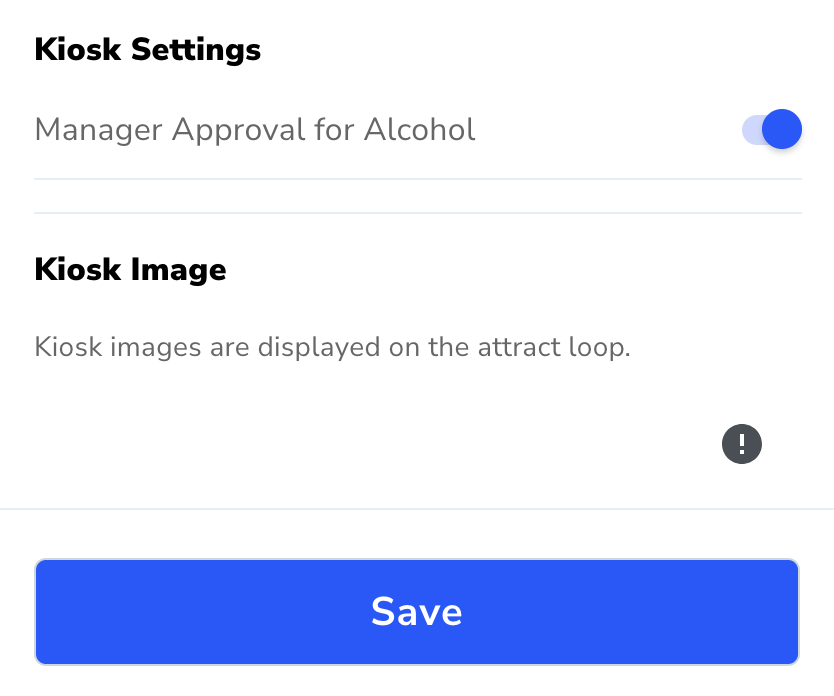
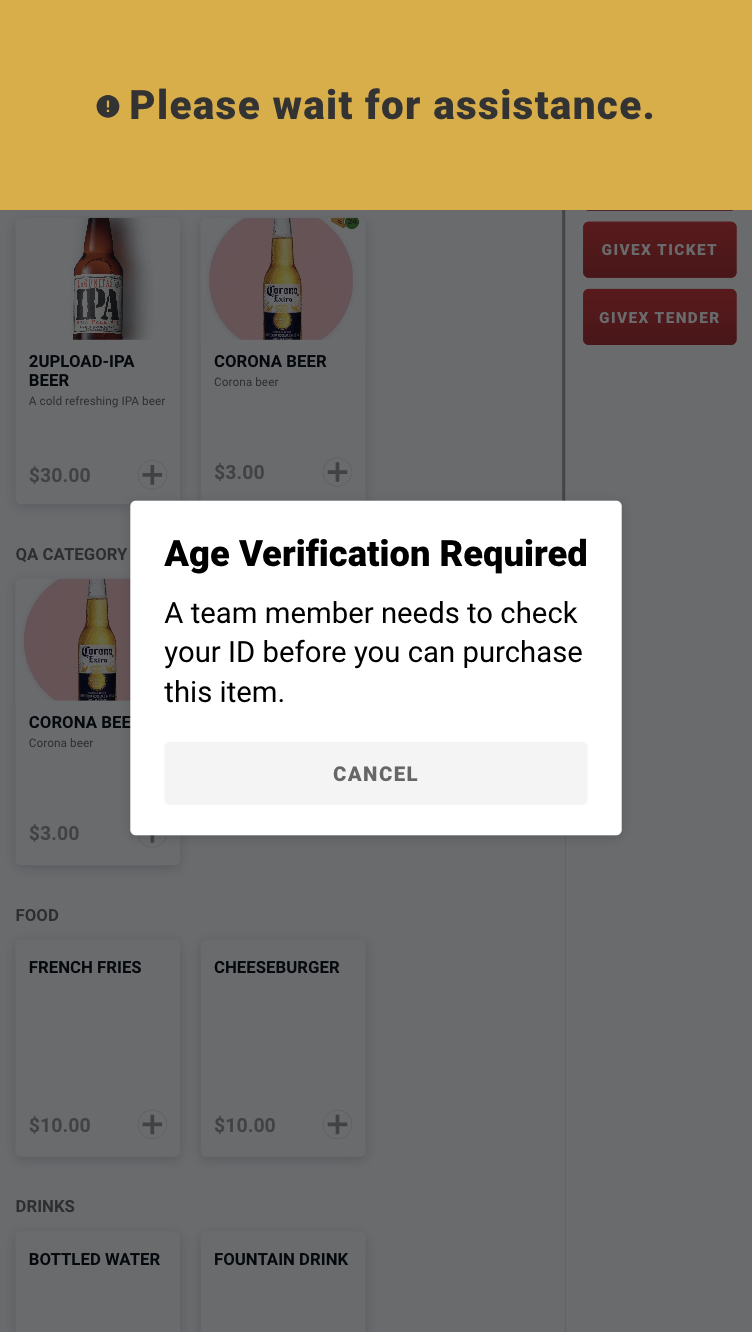
You can now require Manager Approval to purchase alcohol on a Kiosk
To enable this functionality, go to Menu Manager > Revenue Centers > Select Revenue Center > Select Kiosk Menu > scroll down to Kiosk Settings > Toggle "Manager Approval for Alcohol" to On > Tap Save
When enabled, Manager PIN will be required when an alcohol item is added to the cart. From this screen, the Manager should double-tap the yellow bar, and then they will be prompted to enter their PIN.
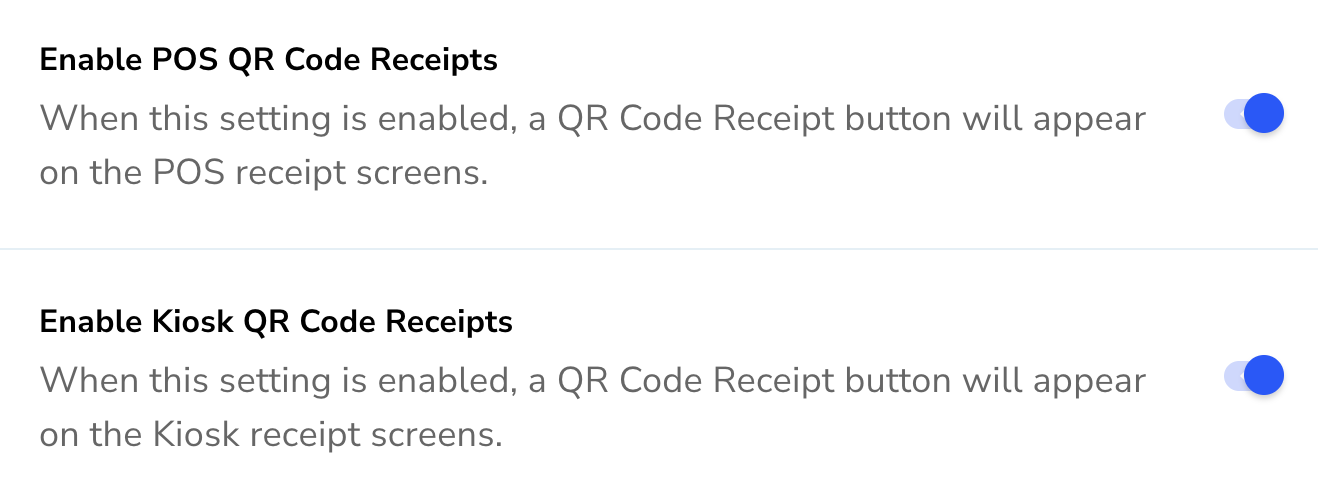
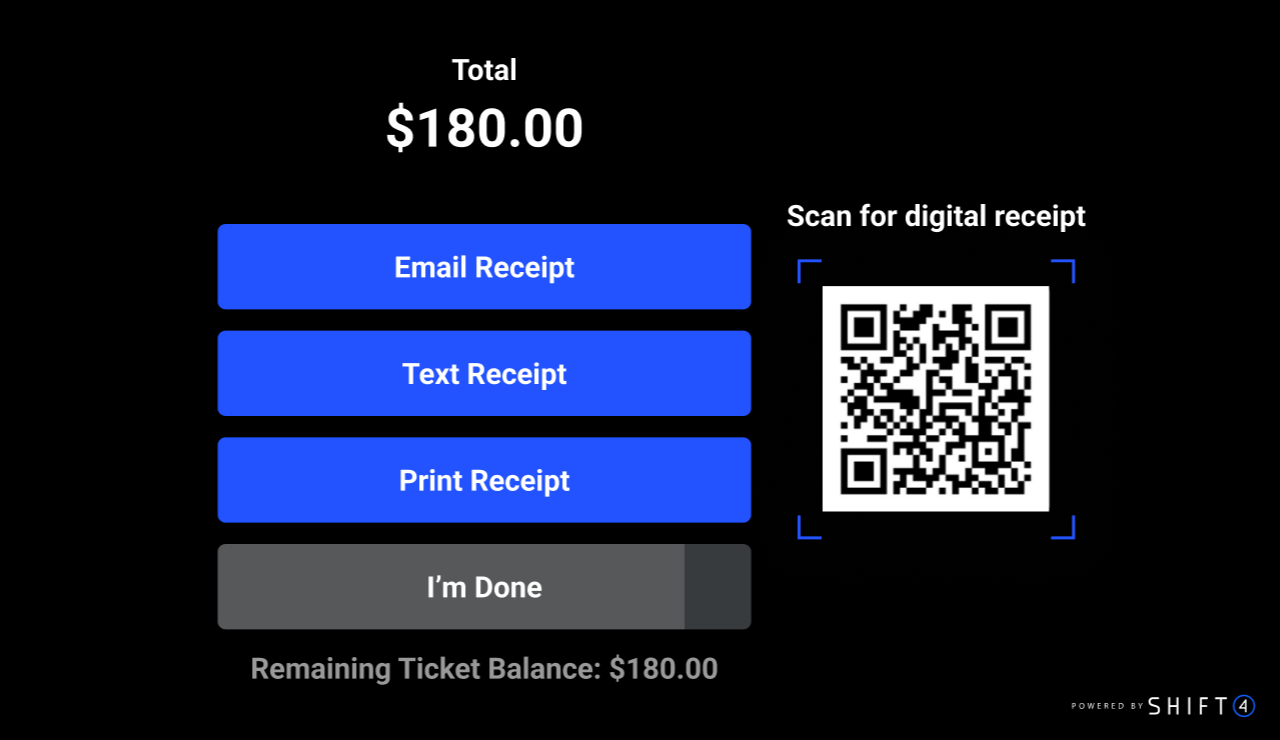
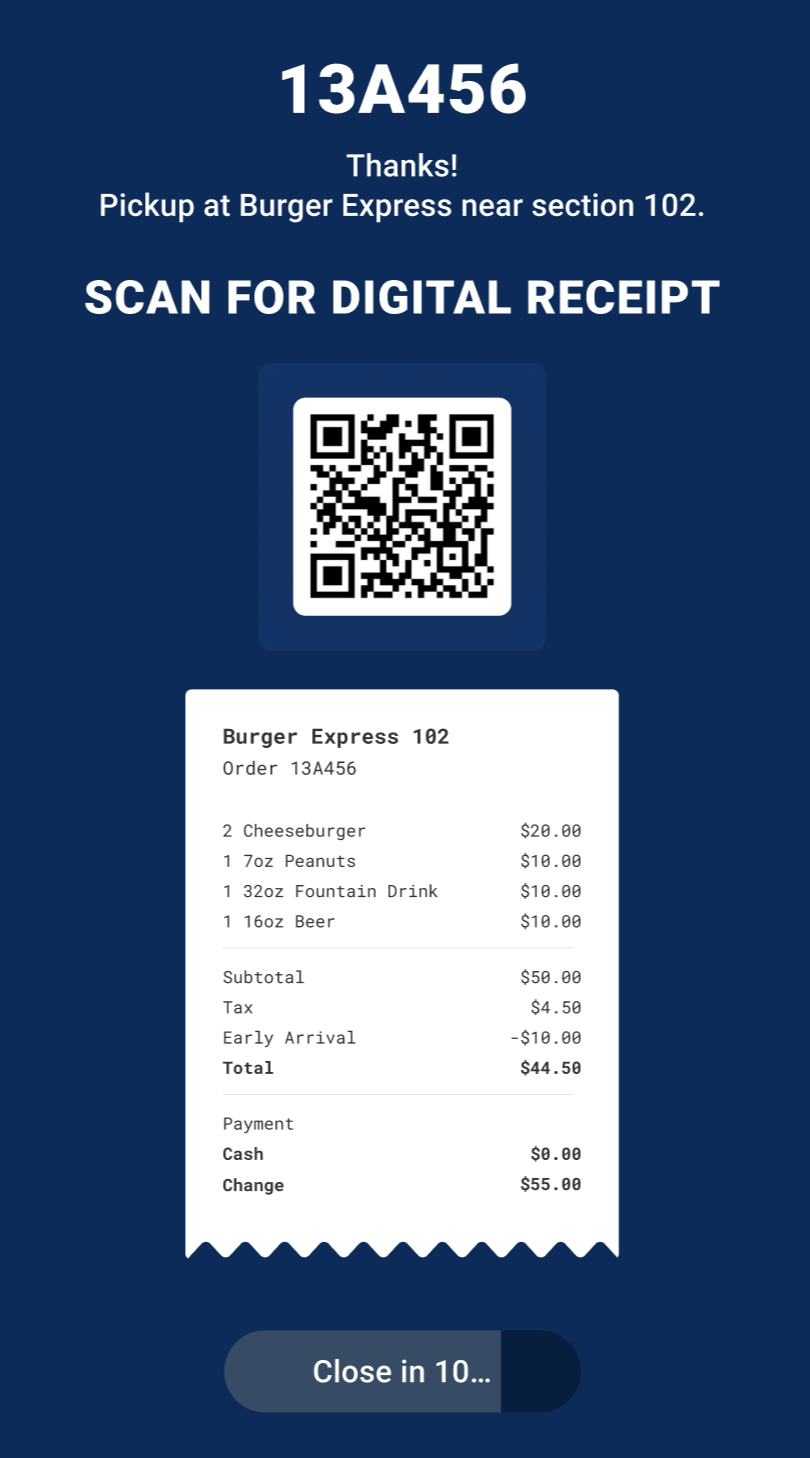
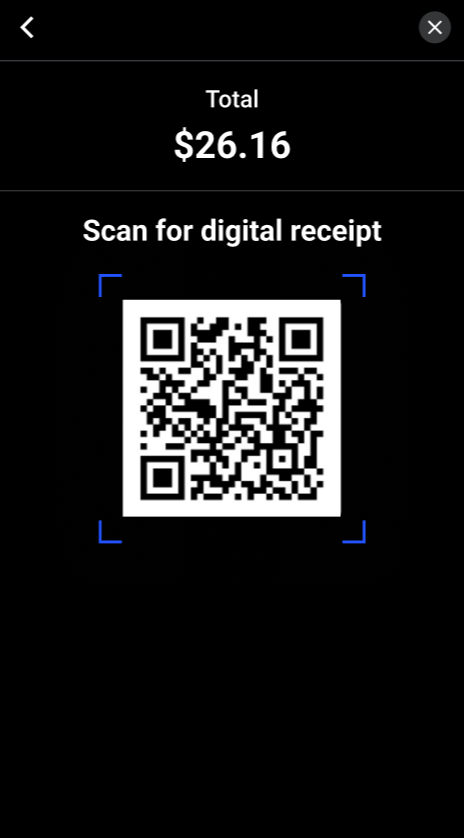
Ability to enable QR Code Receipts on the POS and/or Kiosk
To enable, go to Menu Manager > Settings > Venue Settings > Toggle "Enable POS QR Code Receipts" and/or "Enable Kiosk QR Code Receipts" to On > Tap Save
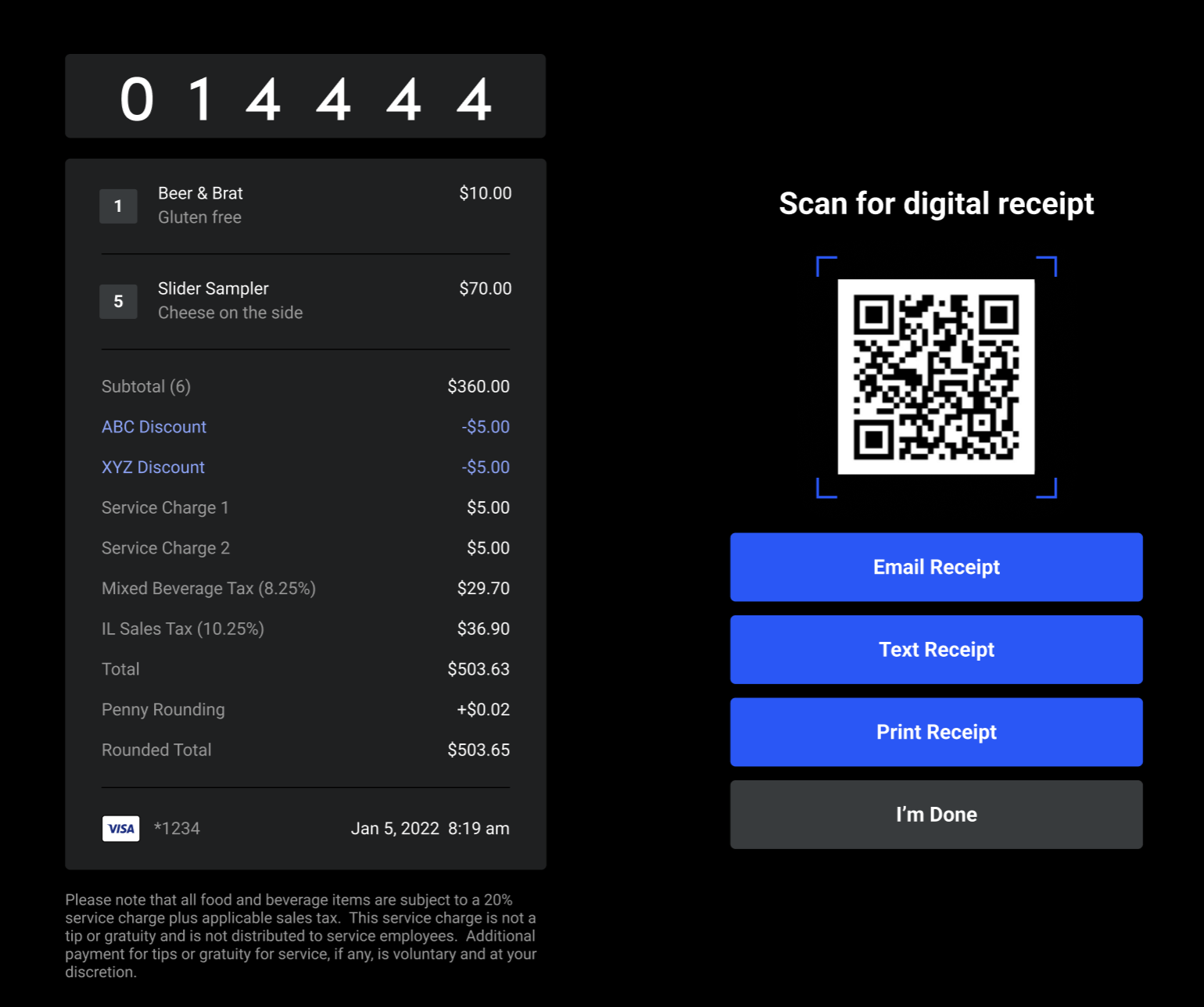
When enabled, there will be a QR Code for the guest can scan the code from their mobile device to a digital receipt in their web browser
On countertop POS, CFD, and Kiosk, a QR Code will be displayed on the digital receipt screen
On mobile POS, there will be a QR Code button; tapping the button will reveal the QR Code
When configuring product barcode scanning on Kiosk, you will now have the option to display scannable items in the menu; when enabled, items with a barcode will be displayed in the menu
Bug Fixes:
Fixed an issue where a card payment on the CFD would fail after cancelling out of a card authorization to start a tab
Fixed an issue where Approved Offline transactions would intermittently result in an authorization failure
*Fixed an issue where an order would fail if an invalid promo was submitted with the order
Menu Manager v3.5.0
New Features:
Added a Manager Approval for Alcohol setting on Kiosk menus, allowing venues to require a manager PIN before a guest can complete a Kiosk order that contains alcohol items.
Bug Fixes:
Fixed an issue in Order Ahead Hours where identical start and end times could be saved without showing a validation error.
Fixed an issue where clearing the Sales Event Type price on an item did not remove the value after saving.
Fixed an issue where the low inventory indicator dot was missing next to modifiers in the Modifier Groups drawer.
Fixed an inconsistency in Modifier Groups where the assigned items count in the details drawer did not match the modifiers drawer when open modifier conditions were applied.
Fixed an issue where Revenue Center saves sent unnecessary DELETE requests for menu and kiosk images that had been added and then removed before the first save.
Fixed an issue where the Tax Group section did not display in Settings on initial navigation and only appeared after opening the page in a new tab.
Fixed UUID validation and trimming during bulk item upload so that entries with whitespace or malformed UUIDs are caught before submission.
Fixed a layout issue in Display Categories where excessively long category names broke the table layout and pushed the Assigned Items and Color columns off-screen.
Fixed an issue in Display Categories where the Save and Cancel buttons remained visible after a successful sort action instead of returning to the default Sort button view.
Fixed an issue where Price Levels could be saved without a name, leaving empty entries in the list.
Fixed an issue where Price Level changes were saved when closing the drawer via the X button instead of being discarded.
Mobile Ordering Web v1.74.2
Enhancements:
Added support for POS QR Code receipts
Bug Fixes:
*Fixed an issue where a non-stackable promotion would only be applied if it was set to the highest priority
*Fixed the following issues with JWO receipt lookup
The date of the shopping trip showed the next business day under certain conditions
When searching by date, orders from the previous date would be returned under certain conditions
The expiration date filter was not working as expected
For questions or assistance, contact SkyTab Venue Support at 877.559.4225, email venuesupport@shift4.com, or reach out to your Enterprise Account Manager.